<?xml version="1.0" encoding="utf-8"?><?xml-stylesheet type="text/xsl" href="atom.xsl"?>
<feed xmlns="http://www.w3.org/2005/Atom">
    <id>https://LostInPerspiration.com/blog</id>
    <title>LostInPerspiration Blog</title>
    <updated>2025-11-05T00:00:00.000Z</updated>
    <generator>https://github.com/jpmonette/feed</generator>
    <link rel="alternate" href="https://LostInPerspiration.com/blog"/>
    <subtitle>LostInPerspiration Blog</subtitle>
    <icon>https://LostInPerspiration.com/img/favicon.ico</icon>
    <entry>
        <title type="html"><![CDATA[Recipe Parser: Better design? Or design better?]]></title>
        <id>https://LostInPerspiration.com/blog/recipe-parser</id>
        <link href="https://LostInPerspiration.com/blog/recipe-parser"/>
        <updated>2025-11-05T00:00:00.000Z</updated>
        <summary type="html"><![CDATA[I never found a solution for storing favorite recipes that wasn't very manual or required signing up for a service. As I explore the world of software development and solutions-as-code, I chose this as a problem statement for a DIY approach. What I really should do is find a cheap printer and have a physical binder full of recipes like they did in the olden days, but that's no fun...]]></summary>
        <content type="html"><![CDATA[<p>I never found a solution for storing favorite recipes that wasn't very manual or required signing up for a service. As I explore the world of software development and solutions-as-code, I chose this as a problem statement for a DIY approach. What I really should do is find a cheap printer and have a physical binder full of recipes like they did in the olden days, but that's no fun...</p>
<p>The requirements for this project were simple, or so I thought: Save recipes from the web in a readily accessible and usable format. I didn't realize until later that I had many more requirements I had not discovered. In the end, valuable lessons were learning about knowing your requirements and... just knowing more?</p>
<h2 class="anchor anchorTargetStickyNavbar_Vzrq" id="timeline">Timeline<a href="https://lostinperspiration.com/blog/recipe-parser#timeline" class="hash-link" aria-label="Direct link to Timeline" title="Direct link to Timeline" translate="no">​</a></h2>
<h3 class="anchor anchorTargetStickyNavbar_Vzrq" id="what-have-other-people-done">What have other people done?<a href="https://lostinperspiration.com/blog/recipe-parser#what-have-other-people-done" class="hash-link" aria-label="Direct link to What have other people done?" title="Direct link to What have other people done?" translate="no">​</a></h3>
<p>I saw many recommendations for Copy Me That, Paprika App, and plain-old recipe cards, but nothing that satisfied. Many of my requirements were formed at this phase, though they lacked firm statements.</p>
<div class="theme-admonition theme-admonition-note admonition_xJq3 alert alert--secondary"><div class="admonitionHeading_Gvgb"><span class="admonitionIcon_Rf37"><svg viewBox="0 0 14 16"><path fill-rule="evenodd" d="M6.3 5.69a.942.942 0 0 1-.28-.7c0-.28.09-.52.28-.7.19-.18.42-.28.7-.28.28 0 .52.09.7.28.18.19.28.42.28.7 0 .28-.09.52-.28.7a1 1 0 0 1-.7.3c-.28 0-.52-.11-.7-.3zM8 7.99c-.02-.25-.11-.48-.31-.69-.2-.19-.42-.3-.69-.31H6c-.27.02-.48.13-.69.31-.2.2-.3.44-.31.69h1v3c.02.27.11.5.31.69.2.2.42.31.69.31h1c.27 0 .48-.11.69-.31.2-.19.3-.42.31-.69H8V7.98v.01zM7 2.3c-3.14 0-5.7 2.54-5.7 5.68 0 3.14 2.56 5.7 5.7 5.7s5.7-2.55 5.7-5.7c0-3.15-2.56-5.69-5.7-5.69v.01zM7 .98c3.86 0 7 3.14 7 7s-3.14 7-7 7-7-3.12-7-7 3.14-7 7-7z"></path></svg></span>Requirements Discovered</div><div class="admonitionContent_BuS1"><ul>
<li class="">Didn't want to pay for a service</li>
<li class="">Free services hosted by others can be liability in privacy and vendor lock-in</li>
</ul></div></div>
<h3 class="anchor anchorTargetStickyNavbar_Vzrq" id="start-somewhere">Start somewhere<a href="https://lostinperspiration.com/blog/recipe-parser#start-somewhere" class="hash-link" aria-label="Direct link to Start somewhere" title="Direct link to Start somewhere" translate="no">​</a></h3>
<p>Since I'm already immersed in the Google ecosystem, and they've taken my data already, Drive was a familiar choice. At the risk of being shoehorned into a less-than-ideal platform, I created a folder for storing recipes as Google Docs and a Google Sheet for acting as the table of contents. At this point, I considered manually copying and formatting the recipes as a cop-out answer, but I forged ahead into uncharted territory.</p>
<div class="language-text codeBlockContainer_Ckt0 theme-code-block" style="--prism-color:#393A34;--prism-background-color:#f6f8fa"><div class="codeBlockContent_QJqH"><pre tabindex="0" class="prism-code language-text codeBlock_bY9V thin-scrollbar" style="color:#393A34;background-color:#f6f8fa"><code class="codeBlockLines_e6Vv"><span class="token-line" style="color:#393A34"><span class="token plain">Recipes/ </span><br></span><span class="token-line" style="color:#393A34"><span class="token plain">├── Table-Of-Contents</span><br></span><span class="token-line" style="color:#393A34"><span class="token plain">└── RecipeDocs/ </span><br></span><span class="token-line" style="color:#393A34"><span class="token plain">	├── Recipe1 </span><br></span><span class="token-line" style="color:#393A34"><span class="token plain">	└── Recipe2</span><br></span></code></pre></div></div>
<h3 class="anchor anchorTargetStickyNavbar_Vzrq" id="throw-ai-at-it">Throw AI at it<a href="https://lostinperspiration.com/blog/recipe-parser#throw-ai-at-it" class="hash-link" aria-label="Direct link to Throw AI at it" title="Direct link to Throw AI at it" translate="no">​</a></h3>
<p>I knew that any AI chat bot would be able to browse to a recipe article and extract the ingredients list and instructions. At the very least, an LLM would be effective at extracting content from raw HTML. I installed Ollama for the first time and played around with <code>gemma3:1b</code> and <code>deepseekr1:1.5b</code> models. While the novelty of running AI on my own computer was exciting, I wasn't any closer to a final product. With this newfound knowledge, and the smallest bit of experience, I was able to form more requirements.</p>
<div class="theme-admonition theme-admonition-note admonition_xJq3 alert alert--secondary"><div class="admonitionHeading_Gvgb"><span class="admonitionIcon_Rf37"><svg viewBox="0 0 14 16"><path fill-rule="evenodd" d="M6.3 5.69a.942.942 0 0 1-.28-.7c0-.28.09-.52.28-.7.19-.18.42-.28.7-.28.28 0 .52.09.7.28.18.19.28.42.28.7 0 .28-.09.52-.28.7a1 1 0 0 1-.7.3c-.28 0-.52-.11-.7-.3zM8 7.99c-.02-.25-.11-.48-.31-.69-.2-.19-.42-.3-.69-.31H6c-.27.02-.48.13-.69.31-.2.2-.3.44-.31.69h1v3c.02.27.11.5.31.69.2.2.42.31.69.31h1c.27 0 .48-.11.69-.31.2-.19.3-.42.31-.69H8V7.98v.01zM7 2.3c-3.14 0-5.7 2.54-5.7 5.68 0 3.14 2.56 5.7 5.7 5.7s5.7-2.55 5.7-5.7c0-3.15-2.56-5.69-5.7-5.69v.01zM7 .98c3.86 0 7 3.14 7 7s-3.14 7-7 7-7-3.12-7-7 3.14-7 7-7z"></path></svg></span>Requirements Discovered</div><div class="admonitionContent_BuS1"><ul>
<li class="">Can't be local to just my desktop</li>
<li class="">Needs to be accessible from anywhere, not just my home network</li>
<li class="">Avoid the security burden and not be publicly accessible</li>
</ul></div></div>
<h3 class="anchor anchorTargetStickyNavbar_Vzrq" id="if-not-on-prem-then-cloud">If not on-prem, then cloud<a href="https://lostinperspiration.com/blog/recipe-parser#if-not-on-prem-then-cloud" class="hash-link" aria-label="Direct link to If not on-prem, then cloud" title="Direct link to If not on-prem, then cloud" translate="no">​</a></h3>
<p>Cloudflare was the first stop, being the cloud provider that I had the most familiarity with. Even though Cloudflare's compute offerings pale in comparison to the other titans in the industry, finding a solution would mean one less account I had to sign up for.</p>
<p>I came across several offerings that would help me in my search, the first being <a href="https://developers.cloudflare.com/email-routing/email-workers/" target="_blank" rel="noopener noreferrer" class="">Email Workers</a>. A serverless function triggered on the receipt of an email. The flow of the solution was beginning to form in my head:</p>
<ol>
<li class="">Send email with recipe page URL to destination address</li>
<li class="">Parse email to obtain URL</li>
<li class="">Fetch HTML content</li>
<li class="">Prompt LLM to extract recipe info</li>
<li class="">Output to Google Docs</li>
</ol>
<p>The second offering I discovered was <a href="https://developers.cloudflare.com/workers-ai/" target="_blank" rel="noopener noreferrer" class="">Workers AI</a>. A serverless integration for LLMs with generous free tiers on a known platform. I created a prompt and received a response from the LLM - nice and easy.</p>
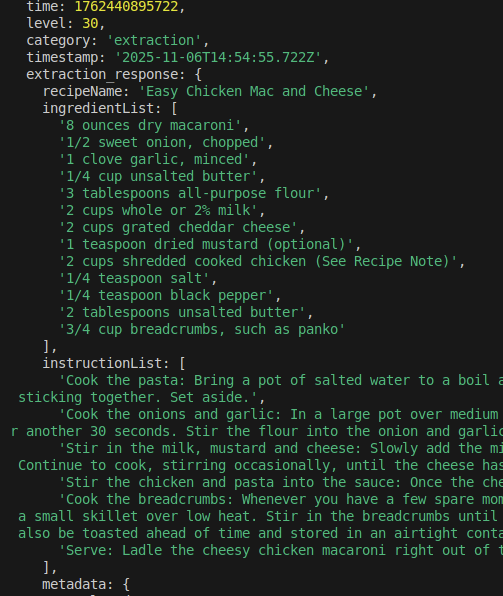
<p>The third offering was <a href="https://developers.cloudflare.com/browser-rendering/" target="_blank" rel="noopener noreferrer" class="">Browser Rendering</a>, to run headless Chrome for automation and web scraping. Looking back, I should have stopped at the <code>/browser-rendering/content</code> API and sent the raw HTML into an LLM prompt but I was more concerned with finding the "best" solution. I spent the majority of my time working with an integration called <a href="https://developers.cloudflare.com/browser-rendering/platform/stagehand/" target="_blank" rel="noopener noreferrer" class="">Stagehand</a>, an AI powered browser automation library. After code incompatibilities, version conflicts, and overall sub-par performance, the email --&gt; LLM flow achieved a usable output.</p>
<p><img decoding="async" loading="lazy" alt="Screenshot of terminal" src="https://lostinperspiration.com/assets/images/cf-llm-output-033d52d6bfda5ed567d8ed370c8847b9.png" width="503" height="596" class="img_ev3q"></p>
<div class="theme-admonition theme-admonition-note admonition_xJq3 alert alert--secondary"><div class="admonitionHeading_Gvgb"><span class="admonitionIcon_Rf37"><svg viewBox="0 0 14 16"><path fill-rule="evenodd" d="M6.3 5.69a.942.942 0 0 1-.28-.7c0-.28.09-.52.28-.7.19-.18.42-.28.7-.28.28 0 .52.09.7.28.18.19.28.42.28.7 0 .28-.09.52-.28.7a1 1 0 0 1-.7.3c-.28 0-.52-.11-.7-.3zM8 7.99c-.02-.25-.11-.48-.31-.69-.2-.19-.42-.3-.69-.31H6c-.27.02-.48.13-.69.31-.2.2-.3.44-.31.69h1v3c.02.27.11.5.31.69.2.2.42.31.69.31h1c.27 0 .48-.11.69-.31.2-.19.3-.42.31-.69H8V7.98v.01zM7 2.3c-3.14 0-5.7 2.54-5.7 5.68 0 3.14 2.56 5.7 5.7 5.7s5.7-2.55 5.7-5.7c0-3.15-2.56-5.69-5.7-5.69v.01zM7 .98c3.86 0 7 3.14 7 7s-3.14 7-7 7-7-3.12-7-7 3.14-7 7-7z"></path></svg></span>Requirements Discovered</div><div class="admonitionContent_BuS1"><ul>
<li class="">Needs to be maintainable end-to-end by me</li>
<li class="">Simple is better</li>
<li class="">Avoid hundreds of dependencies (npm packages)</li>
</ul></div></div>
<h3 class="anchor anchorTargetStickyNavbar_Vzrq" id="time-to-integrate-with-google">Time to integrate with Google<a href="https://lostinperspiration.com/blog/recipe-parser#time-to-integrate-with-google" class="hash-link" aria-label="Direct link to Time to integrate with Google" title="Direct link to Time to integrate with Google" translate="no">​</a></h3>
<p>To fulfil the end goal, the output should be saved to a Google Doc. At some point while looking at the Node.js Drive SDK I asked myself "If I have to integrate with Google anyway, why not just use Google for everything?" This was the beginning of the end, as I bounced around between Google Cloud, Google Workspace and eventually found something I had never heard of before, Google Apps Scripts. There were some limitations, but a new code flow formed in my head:</p>
<ol>
<li class="">Send email with recipe page URL to personal email</li>
<li class="">Flag email with "Automation" label</li>
<li class="">Parse email to obtain URL</li>
<li class="">Fetch HTML content</li>
<li class="">Prompt LLM to extract recipe info</li>
<li class="">Output to Google Docs</li>
</ol>
<p>I left all the progress made with the previous solution, somewhat disappointingly, with the hope I could make something that better suits my needs. Within a few hours I had a fully working product. Project available on my GitHub: <a href="https://github.com/lostinstarvation/google-recipe-parser" target="_blank" rel="noopener noreferrer" class="">https://github.com/lostinstarvation/google-recipe-parser</a></p>
<p>There are downsides to the current approach:</p>
<ol>
<li class="">No event based trigger, so the execution of the script has to be scheduled</li>
<li class="">Dependent on email rules to correctly identify emails</li>
<li class="">Runs under user account context</li>
</ol>
<h2 class="anchor anchorTargetStickyNavbar_Vzrq" id="lessons-learned">Lessons learned<a href="https://lostinperspiration.com/blog/recipe-parser#lessons-learned" class="hash-link" aria-label="Direct link to Lessons learned" title="Direct link to Lessons learned" translate="no">​</a></h2>
<p>My requirements  looked like this - a stark contrast from the simple statement in the beginning:</p>
<ol>
<li class="">Have full control over solution to add or remove features</li>
<li class="">Minimize third party integrations and dependencies</li>
<li class="">Free, without paying in privacy</li>
<li class="">Recipes should be exportable or saved in a common format</li>
<li class="">Accessible from desktop or mobile while away or at home</li>
<li class="">Easy to use for multiple people</li>
</ol>
<p>So, to answer the question, do I need to be better at designing solutions or know how to design solutions better?</p>
<ul>
<li class=""><strong>Better at designing solutions</strong>: Knowing the right tools for the job comes with time, as you can't know everything from the start</li>
<li class=""><strong>Design solutions better</strong>: One improvement, out of many I'm sure, is to <em>know your requirements</em></li>
</ul>]]></content>
    </entry>
    <entry>
        <title type="html"><![CDATA[Connected Cache Troubleshooting]]></title>
        <id>https://LostInPerspiration.com/blog/Conn-Cache-Troubleshooting</id>
        <link href="https://LostInPerspiration.com/blog/Conn-Cache-Troubleshooting"/>
        <updated>2025-07-17T00:00:00.000Z</updated>
        <summary type="html"><![CDATA[September 2025 Update: This article was written using the preview version of MCC, which has since been updated to global availability. Some features may have changed and issues may have been fixed.]]></summary>
        <content type="html"><![CDATA[<p>September 2025 Update: This article was written using the preview version of MCC, which has since been updated to global availability. Some features may have changed and issues may have been fixed.</p>
<p>After a long 3 weeks of fumbling around with Microsoft Connected Cache (MCC) and the underlying technologies, I determined that the issue with my deployment ultimately stemmed from the lack of proxy support in the installation scripts. While the root cause of your problem will most likely be different from mine, the steps listed below are a good start to diagnose several possible issues and to aid general understanding the of the application.</p>
<p>I'll be covering the installation of MCC on a Windows 2022 Server with unauthenticated proxy support.</p>
<p>Start your troubleshooting journey here: <a href="https://learn.microsoft.com/en-us/windows/deployment/do/mcc-ent-troubleshooting#troubleshooting-cache-node-deployment-to-windows-host-machine" target="_blank" rel="noopener noreferrer" class="">https://learn.microsoft.com/en-us/windows/deployment/do/mcc-ent-troubleshooting#troubleshooting-cache-node-deployment-to-windows-host-machine</a></p>
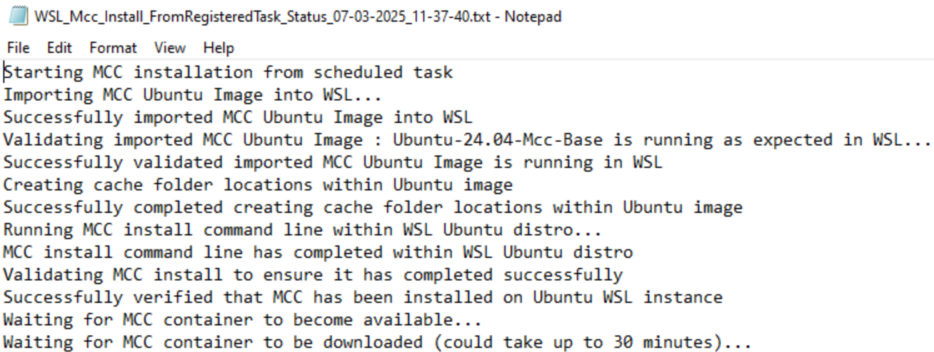
<p>The installation failed on the 'Waiting for MCC container to become available' step: <img decoding="async" loading="lazy" alt="Screenshot of installation log" src="https://lostinperspiration.com/assets/images/waiting-for-mcc-container-34d9891c72b52da9f6134dbff506e8ef.png" width="934" height="352" class="img_ev3q"></p>
<h2 class="anchor anchorTargetStickyNavbar_Vzrq" id="step-1-why-is-it-failing">Step 1: Why is it failing<a href="https://lostinperspiration.com/blog/Conn-Cache-Troubleshooting#step-1-why-is-it-failing" class="hash-link" aria-label="Direct link to Step 1: Why is it failing" title="Direct link to Step 1: Why is it failing" translate="no">​</a></h2>
<p>"Waiting for MCC container to be downloaded..." is generated by <code>installmcconwsl.ps1</code> and the following section:</p>
<div class="language-PowerShell language-powershell codeBlockContainer_Ckt0 theme-code-block" style="--prism-color:#393A34;--prism-background-color:#f6f8fa"><div class="codeBlockContent_QJqH"><pre tabindex="0" class="prism-code language-powershell codeBlock_bY9V thin-scrollbar" style="color:#393A34;background-color:#f6f8fa"><code class="codeBlockLines_e6Vv"><span class="token-line" style="color:#393A34"><span class="token plain">while (!(Wait-ForMccContentToReturn))</span><br></span><span class="token-line" style="color:#393A34"><span class="token plain">{...}</span><br></span></code></pre></div></div>
<p>The function 'Wait-ForMccContentToReturn' is located in <code>utilities.ps1</code>:</p>
<div class="language-PowerShell language-powershell codeBlockContainer_Ckt0 theme-code-block" style="--prism-color:#393A34;--prism-background-color:#f6f8fa"><div class="codeBlockContent_QJqH"><pre tabindex="0" class="prism-code language-powershell codeBlock_bY9V thin-scrollbar" style="color:#393A34;background-color:#f6f8fa"><code class="codeBlockLines_e6Vv"><span class="token-line" style="color:#393A34"><span class="token plain">function Wait-ForMccContentToReturn()</span><br></span><span class="token-line" style="color:#393A34"><span class="token plain">{</span><br></span><span class="token-line" style="color:#393A34"><span class="token plain">    try </span><br></span><span class="token-line" style="color:#393A34"><span class="token plain">    {</span><br></span><span class="token-line" style="color:#393A34"><span class="token plain">        $Bytes = [system.Text.Encoding]::UTF8.GetBytes("key=value")</span><br></span><span class="token-line" style="color:#393A34"><span class="token plain">        $Web = [net.WebRequest]::Create("http://127.0.0.1:80/mscomtest/cedtest/r20.gif") -as [net.HttpWebRequest]</span><br></span><span class="token-line" style="color:#393A34"><span class="token plain">        $Web.ContentType = "application/x-www-form-urlencoded"</span><br></span><span class="token-line" style="color:#393A34"><span class="token plain">        $Web.Host = "b1.download.windowsupdate.com"</span><br></span><span class="token-line" style="color:#393A34"><span class="token plain">        $Web.Method = "GET"			</span><br></span><span class="token-line" style="color:#393A34"><span class="token plain">        $response = $Web.GetResponse()		</span><br></span><span class="token-line" style="color:#393A34"><span class="token plain">    </span><br></span><span class="token-line" style="color:#393A34"><span class="token plain">        if (($response.StatusDescription).ToUpper() -eq "OK")</span><br></span><span class="token-line" style="color:#393A34"><span class="token plain">        {</span><br></span><span class="token-line" style="color:#393A34"><span class="token plain">            return $true</span><br></span><span class="token-line" style="color:#393A34"><span class="token plain">        }</span><br></span><span class="token-line" style="color:#393A34"><span class="token plain">        else </span><br></span><span class="token-line" style="color:#393A34"><span class="token plain">        {</span><br></span><span class="token-line" style="color:#393A34"><span class="token plain">            return $false</span><br></span><span class="token-line" style="color:#393A34"><span class="token plain">        }</span><br></span><span class="token-line" style="color:#393A34"><span class="token plain" style="display:inline-block"></span><br></span><span class="token-line" style="color:#393A34"><span class="token plain">    }</span><br></span><span class="token-line" style="color:#393A34"><span class="token plain">    catch </span><br></span><span class="token-line" style="color:#393A34"><span class="token plain">    {</span><br></span><span class="token-line" style="color:#393A34"><span class="token plain">        return $false</span><br></span><span class="token-line" style="color:#393A34"><span class="token plain">    }</span><br></span><span class="token-line" style="color:#393A34"><span class="token plain">}</span><br></span></code></pre></div></div>
<p>MCC is a web server running in a container in WSL. The installer is checking to see if a successful web request can be made to localhost over port 80. This web request does not seem to be working.</p>
<h2 class="anchor anchorTargetStickyNavbar_Vzrq" id="step-2-check-networking">Step 2: Check networking<a href="https://lostinperspiration.com/blog/Conn-Cache-Troubleshooting#step-2-check-networking" class="hash-link" aria-label="Direct link to Step 2: Check networking" title="Direct link to Step 2: Check networking" translate="no">​</a></h2>
<p>The installation scripts create a firewall and port forwarding rule to take the request from the host VM and route it to the WSL container. More information: <a href="https://jwstanly.com/blog/article/Port+Forwarding+WSL+2+to+Your+LAN/" target="_blank" rel="noopener noreferrer" class="">https://jwstanly.com/blog/article/Port+Forwarding+WSL+2+to+Your+LAN/</a>.</p>
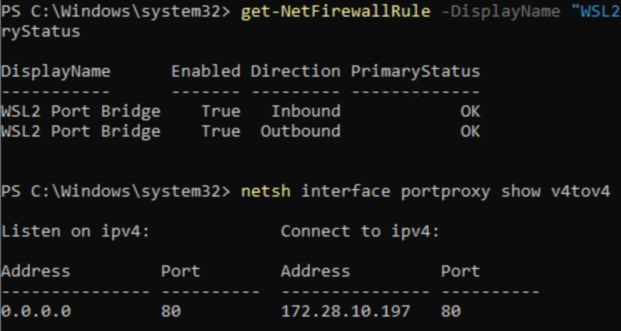
<p>Confirm the configurations have applied successfully:</p>
<div class="language-PowerShell language-powershell codeBlockContainer_Ckt0 theme-code-block" style="--prism-color:#393A34;--prism-background-color:#f6f8fa"><div class="codeBlockContent_QJqH"><pre tabindex="0" class="prism-code language-powershell codeBlock_bY9V thin-scrollbar" style="color:#393A34;background-color:#f6f8fa"><code class="codeBlockLines_e6Vv"><span class="token-line" style="color:#393A34"><span class="token plain">Get-NetFirewallRule -DisplayName "WSL2 Port Bridge" | Select DisplayName,Enabled,Direction,PrimaryStatus</span><br></span><span class="token-line" style="color:#393A34"><span class="token plain">netsh interface portproxy show v4tov4</span><br></span></code></pre></div></div>
<p><img decoding="async" loading="lazy" alt="Command prompt screenshot" src="https://lostinperspiration.com/assets/images/networking-check-good-0a14919877e94c6ee150c6139c0ac16a.png" width="621" height="331" class="img_ev3q"></p>
<p>Looks good. Lets see if the cache server is running and able to accept HTTP requests.</p>
<h2 class="anchor anchorTargetStickyNavbar_Vzrq" id="step-3-check-container">Step 3: Check container<a href="https://lostinperspiration.com/blog/Conn-Cache-Troubleshooting#step-3-check-container" class="hash-link" aria-label="Direct link to Step 3: Check container" title="Direct link to Step 3: Check container" translate="no">​</a></h2>
<p>Installing MCC uses a service account to run the WSL instance. Due to security limitations in my environment, I'm not able to run this account interactively. Running WSL as my own account returns no results as the instance is running under a different user. Psexec might be able to work around this limitation, but I set up a task in Task Scheduler with the same service account to run a PowerShell script on demand.</p>
<p>Task scheduler config:</p>
<ul>
<li class="">Action: Start a program</li>
<li class="">Program/script: <code>C:\Windows\System32\WindowsPowerShell\v1.0\powershell.exe</code></li>
<li class="">Add arguments: <code>-ExecutionPolicy Bypass -command C:\temp\mccTroubleshooter.ps1 2&gt;&amp;1 &gt; C:\temp\MCCLog.log"</code></li>
</ul>
<p>So, by adding some commands to the PowerShell script <code>C:\temp\mccTroubleshooter.ps1</code>, we can see the output in <code>C:\temp\MCCLog.log</code>. For example, the following command will instruct the 'Ubuntu-24.04-Mcc-Base' image running in WSL to run the bash command <code>ip addr</code> in the image.</p>
<div class="language-PowerShell language-powershell codeBlockContainer_Ckt0 theme-code-block" style="--prism-color:#393A34;--prism-background-color:#f6f8fa"><div class="codeBlockContent_QJqH"><pre tabindex="0" class="prism-code language-powershell codeBlock_bY9V thin-scrollbar" style="color:#393A34;background-color:#f6f8fa"><code class="codeBlockLines_e6Vv"><span class="token-line" style="color:#393A34"><span class="token plain">&amp; 'C:\Program Files\wsl\wsl.exe' -d 'Ubuntu-24.04-Mcc-Base' bash -c "ip addr"</span><br></span></code></pre></div></div>
<p>MCC uses Azure IoT containers to handle the requests and management of the application. To check the containers, run the command <code>sudo docker ps</code>. Expect to see three images running.</p>
<p><img decoding="async" loading="lazy" alt="Log file of command output" src="https://lostinperspiration.com/assets/images/docker-ps-67dc99aac897ee6a035615affbaf16df.png" width="546" height="108" class="img_ev3q"></p>
<p>In my case, only the 'azureiotedge-hub' and 'azureiotedge-agent' images were running. The image named 'msconnectedcacheprod1.azurecr.io' was supposed to be downloaded from the internet by the installer but seemed to have failed.</p>
<h2 class="anchor anchorTargetStickyNavbar_Vzrq" id="step-4-check-networking-again">Step 4: Check networking (again)<a href="https://lostinperspiration.com/blog/Conn-Cache-Troubleshooting#step-4-check-networking-again" class="hash-link" aria-label="Direct link to Step 4: Check networking (again)" title="Direct link to Step 4: Check networking (again)" translate="no">​</a></h2>
<p>Microsoft provides a list of network endpoints that must be reachable for MCC to function properly <a href="https://learn.microsoft.com/en-us/windows/deployment/do/delivery-optimization-endpoints" target="_blank" rel="noopener noreferrer" class="">https://learn.microsoft.com/en-us/windows/deployment/do/delivery-optimization-endpoints</a>. Pay special attention to the endpoints for 'IoT Edge / IoT Hub communication'. Check your organizations firewall to determine if the listed endpoints are allowed, in addition to performing DNS and ping checks from within the WSL instance.</p>
<p>Example:</p>
<div class="language-text codeBlockContainer_Ckt0 theme-code-block" style="--prism-color:#393A34;--prism-background-color:#f6f8fa"><div class="codeBlockContent_QJqH"><pre tabindex="0" class="prism-code language-text codeBlock_bY9V thin-scrollbar" style="color:#393A34;background-color:#f6f8fa"><code class="codeBlockLines_e6Vv"><span class="token-line" style="color:#393A34"><span class="token plain"> ping global.azure-devices-provisioning.net</span><br></span></code></pre></div></div>
<p>You should check all those endpoints manually, but I have a shortcut :).</p>
<p>As mentioned before, MCC is using Azure IoT images. This means that all Azure IoT troubleshooting steps also apply to MCC. We will use the command <code>iotedge check</code> to run a collection of configuration and connectivity checks automatically. More information here: <a href="https://learn.microsoft.com/en-us/azure/iot-edge/troubleshoot" target="_blank" rel="noopener noreferrer" class="">https://learn.microsoft.com/en-us/azure/iot-edge/troubleshoot</a>.</p>
<p>I found, through agonizing trial and error, that the URL representing the on-prem Azure IoT image must be added to the command to correctly check connectivity. This URL is referred to as the 'IoT Hub Hostname'. We can grab that by running the following command in WSL:</p>
<div class="language-bash codeBlockContainer_Ckt0 theme-code-block" style="--prism-color:#393A34;--prism-background-color:#f6f8fa"><div class="codeBlockContent_QJqH"><pre tabindex="0" class="prism-code language-bash codeBlock_bY9V thin-scrollbar" style="color:#393A34;background-color:#f6f8fa"><code class="codeBlockLines_e6Vv"><span class="token-line" style="color:#393A34"><span class="token plain">sudo docker inspect edgeAgent | grep 'IOTEDGE_IOTHUBHOSTNAME'</span><br></span></code></pre></div></div>
<p>Returns a value like this: <code>iotc-00000000-0000-0000-0000-000000000000.azure-devices.net</code>. Use this value in the following command:</p>
<div class="language-bash codeBlockContainer_Ckt0 theme-code-block" style="--prism-color:#393A34;--prism-background-color:#f6f8fa"><div class="codeBlockContent_QJqH"><pre tabindex="0" class="prism-code language-bash codeBlock_bY9V thin-scrollbar" style="color:#393A34;background-color:#f6f8fa"><code class="codeBlockLines_e6Vv"><span class="token-line" style="color:#393A34"><span class="token plain">sudo iotedge check --verbose --iothub-hostname iotc-00000000-0000-0000-0000-000000000000.azure-devices.net </span><br></span></code></pre></div></div>
<p>If you are using a proxy, you must add a proxy parameter as shown below. Use the URL format <code>http://proxyurl.com:port</code>. The proxy used here is unauthenticated, so additional credentials were not required.</p>
<div class="language-bash codeBlockContainer_Ckt0 theme-code-block" style="--prism-color:#393A34;--prism-background-color:#f6f8fa"><div class="codeBlockContent_QJqH"><pre tabindex="0" class="prism-code language-bash codeBlock_bY9V thin-scrollbar" style="color:#393A34;background-color:#f6f8fa"><code class="codeBlockLines_e6Vv"><span class="token-line" style="color:#393A34"><span class="token plain">sudo iotedge check --proxy-uri http://proxy.company.com:80 --verbose --iothub-hostname iotc-00000000-0000-0000-0000-000000000000.azure-devices.net</span><br></span></code></pre></div></div>
<p>The output of the command will contain a 'Connectivity Check (aziot-identity-service)' section.</p>
<div class="language-text codeBlockContainer_Ckt0 theme-code-block" style="--prism-color:#393A34;--prism-background-color:#f6f8fa"><div class="codeBlockContent_QJqH"><pre tabindex="0" class="prism-code language-text codeBlock_bY9V thin-scrollbar" style="color:#393A34;background-color:#f6f8fa"><code class="codeBlockLines_e6Vv"><span class="token-line" style="color:#393A34"><span class="token plain">host can connect to and perform TLS handshake with iothub AMQP port - Error</span><br></span><span class="token-line" style="color:#393A34"><span class="token plain">    Failed to do TLS Handshake, Connection Attempt Timed out in 70 Seconds</span><br></span><span class="token-line" style="color:#393A34"><span class="token plain">        caused by: Failed to do TLS Handshake, Connection Attempt Timed out in 70 Seconds</span><br></span><span class="token-line" style="color:#393A34"><span class="token plain">        caused by: deadline has elapsed</span><br></span><span class="token-line" style="color:#393A34"><span class="token plain">host can connect to and perform TLS handshake with iothub HTTPS / WebSockets port - OK</span><br></span><span class="token-line" style="color:#393A34"><span class="token plain">host can connect to and perform TLS handshake with iothub MQTT port - Error</span><br></span><span class="token-line" style="color:#393A34"><span class="token plain">    Failed to do TLS Handshake, Connection Attempt Timed out in 70 Seconds</span><br></span><span class="token-line" style="color:#393A34"><span class="token plain">        caused by: Failed to do TLS Handshake, Connection Attempt Timed out in 70 Seconds</span><br></span><span class="token-line" style="color:#393A34"><span class="token plain">        caused by: deadline has elapsed</span><br></span><span class="token-line" style="color:#393A34"><span class="token plain">host can connect to and perform TLS handshake with DPS endpoint - OK</span><br></span></code></pre></div></div>
<p>This tells us four things:</p>
<ul>
<li class="">Connection failed over AMQP</li>
<li class="">Connection succeeded with HTTPS / Websockets</li>
<li class="">Connection failed over MQTT</li>
<li class="">Connection succeeded with DPS (Device Provisioning Service)</li>
</ul>
<p>Azure IoT supports two protocols for communicating back to the Azure IoT hub: MQTT and AMQP. Another option is supported, which is to tunnel AMQP traffic over port 443, called AMQP over WebSockets (AmqpWs). More information: <a href="https://learn.microsoft.com/en-us/azure/iot-hub/iot-hub-devguide-protocols" target="_blank" rel="noopener noreferrer" class="">https://learn.microsoft.com/en-us/azure/iot-hub/iot-hub-devguide-protocols</a>.</p>
<p>MQTT and AMQP ports are being tested as part of the default connectivity checks, but this does not mean they are necessary for MCC to function. In my environment, AMQP and MQTT were failing with TLS timeouts, and AmqpWs appeared to be working when running <code>iotedge check</code> with proxy support. So why was I still getting errors in the application logs? Let's take a look at the AmqpWs setting in the config files.</p>
<h2 class="anchor anchorTargetStickyNavbar_Vzrq" id="step-5-azure-iot-settings">Step 5: Azure IoT Settings<a href="https://lostinperspiration.com/blog/Conn-Cache-Troubleshooting#step-5-azure-iot-settings" class="hash-link" aria-label="Direct link to Step 5: Azure IoT Settings" title="Direct link to Step 5: Azure IoT Settings" translate="no">​</a></h2>
<p>Azure IoT settings are found in <code>/etc/aziot/config.toml</code>. I viewed the contents with <code>cat /etc/aziot/config.toml</code>.</p>
<div class="language-toml codeBlockContainer_Ckt0 theme-code-block" style="--prism-color:#393A34;--prism-background-color:#f6f8fa"><div class="codeBlockContent_QJqH"><pre tabindex="0" class="prism-code language-toml codeBlock_bY9V thin-scrollbar" style="color:#393A34;background-color:#f6f8fa"><code class="codeBlockLines_e6Vv"><span class="token-line" style="color:#393A34"><span class="token plain">[agent.env]</span><br></span><span class="token-line" style="color:#393A34"><span class="token plain">"UpstreamProtocol" = "AmqpWs"</span><br></span><span class="token-line" style="color:#393A34"><span class="token plain">"https_proxy" = ""</span><br></span></code></pre></div></div>
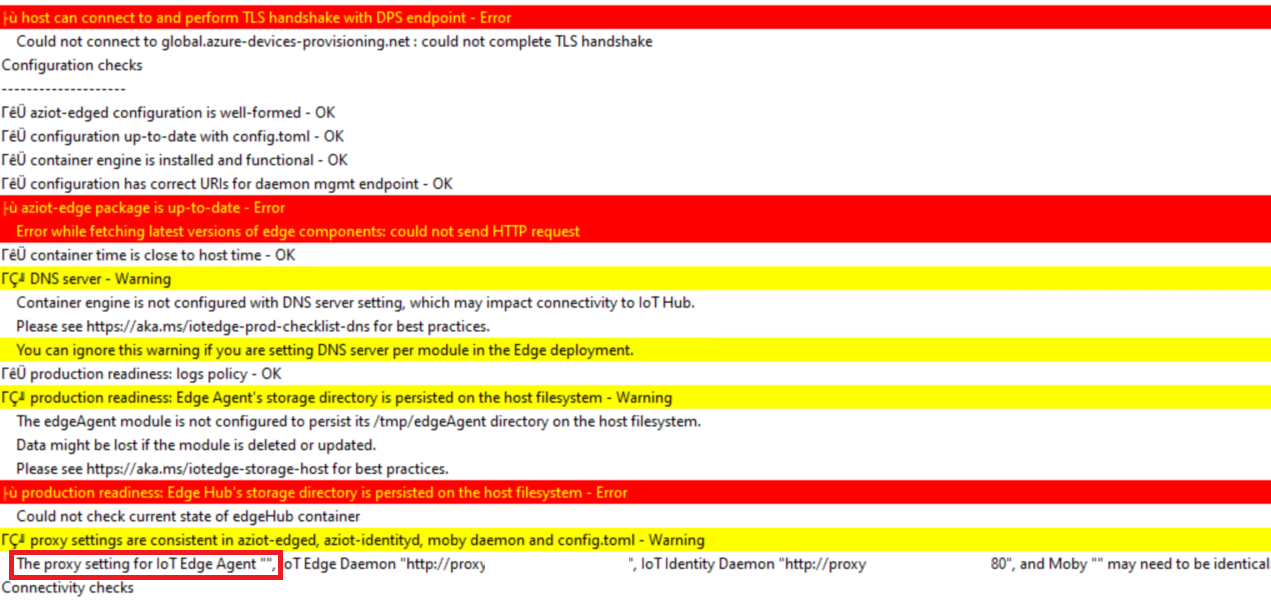
<p>The <code>agent.env</code> section shows that no proxy was configured, despite configuring the only available proxy settings (from the web GUI).</p>
<p>This can be confirmed more simply in the proxy settings section of the <code>iotedge check</code> output. I saw this early in the troubleshooting process and did not understand the implications at the time :(</p>
<p><img decoding="async" loading="lazy" alt="Log file for iotedge chcek" src="https://lostinperspiration.com/assets/images/iotedge-check-output-6dd9b019b034f347614cd56de0bb259c.png" width="1271" height="604" class="img_ev3q"></p>
<p>Changing the config file to add the proxy URL fixed all communication issues and allowed MCC to function as expected.</p>
<div class="language-toml codeBlockContainer_Ckt0 theme-code-block" style="--prism-color:#393A34;--prism-background-color:#f6f8fa"><div class="codeBlockContent_QJqH"><pre tabindex="0" class="prism-code language-toml codeBlock_bY9V thin-scrollbar" style="color:#393A34;background-color:#f6f8fa"><code class="codeBlockLines_e6Vv"><span class="token-line" style="color:#393A34"><span class="token plain">[agent.env]</span><br></span><span class="token-line" style="color:#393A34"><span class="token plain">"UpstreamProtocol" = "AmqpWs"</span><br></span><span class="token-line" style="color:#393A34"><span class="token plain">"https_proxy" = "http://proxy.company.com:80"</span><br></span></code></pre></div></div>
<p>This issue was fixed by Microsoft with updates to the install scripts, but the time spent troubleshooting was both a loss of valuable time and a benefit of experienced gained. Just preview feature things!</p>
<p>But the fun continues...</p>
<h2 class="anchor anchorTargetStickyNavbar_Vzrq" id="step-6-reinstall-and-it-stopped-working">Step 6: Reinstall and... it stopped working?<a href="https://lostinperspiration.com/blog/Conn-Cache-Troubleshooting#step-6-reinstall-and-it-stopped-working" class="hash-link" aria-label="Direct link to Step 6: Reinstall and... it stopped working?" title="Direct link to Step 6: Reinstall and... it stopped working?" translate="no">​</a></h2>
<p>Downloading the newest version of the scripts caused the installation to fail once again, this time with a 'certificate verification' error. The updates to the install scripts contained the fix for the proxy issue, but also added new processes.</p>
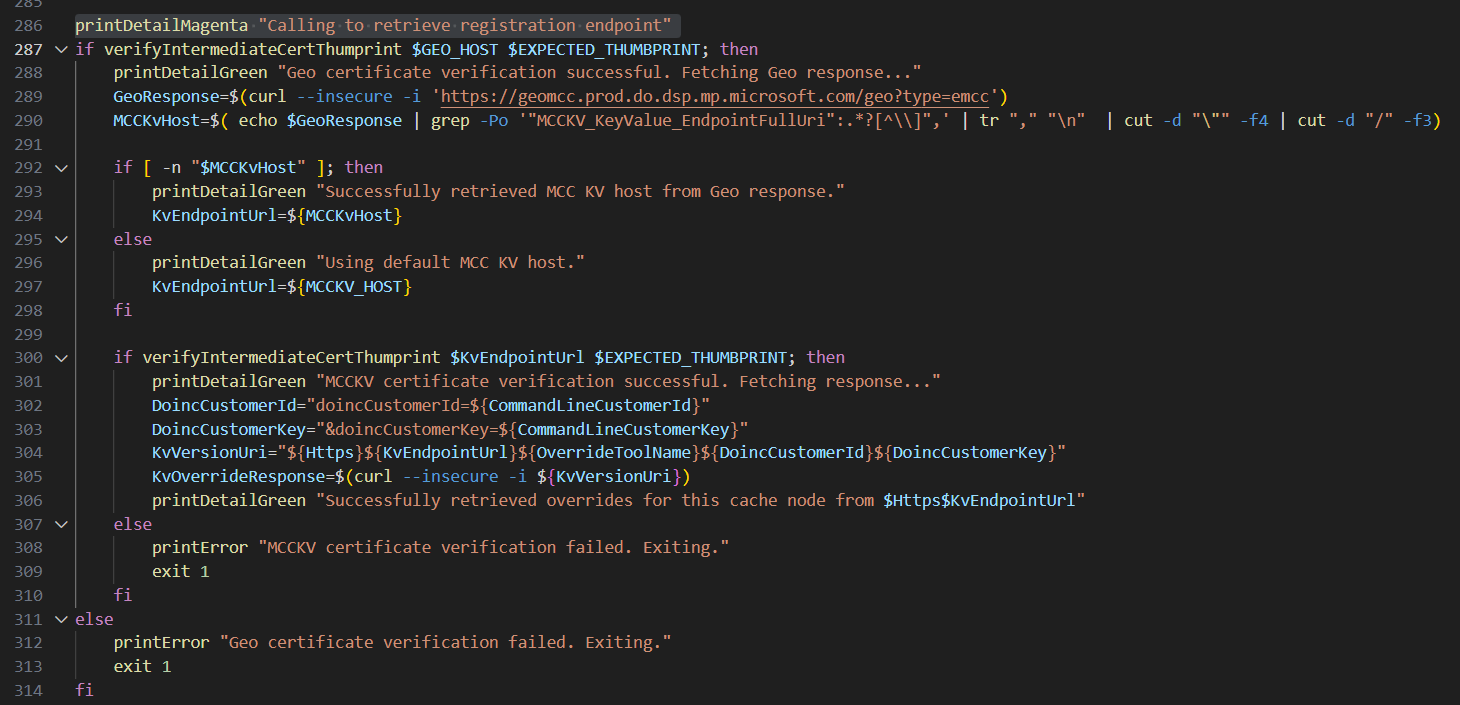
<p>When the main PowerShell installation script runs, it downloads the latest Linux scripts to run inside WSL. A new script block was added to <code>provisionmcc.sh</code> that validates the certificate of the connection being used. Once again, the unauthenticated proxy in my environment collided with the lack of proxy support in the install scripts, causing terminating errors. The quickest fix I found was to edit out the new section and replace with the below script block after <code>provisionmcc.sh</code> automatically downloads and before <code>provisionmcc.sh</code> is called by the installing script (you have 2-3 minutes to do this).</p>
<p>Remove line 286 - 314:
<img decoding="async" loading="lazy" alt="alt text" src="https://lostinperspiration.com/assets/images/new-script-proxy-check-5bad8728915bf55b9cd0aac6d834a3a2.png" width="1460" height="705" class="img_ev3q"></p>
<p>And replace with:</p>
<div class="language-bash codeBlockContainer_Ckt0 theme-code-block" style="--prism-color:#393A34;--prism-background-color:#f6f8fa"><div class="codeBlockContent_QJqH"><pre tabindex="0" class="prism-code language-bash codeBlock_bY9V thin-scrollbar" style="color:#393A34;background-color:#f6f8fa"><code class="codeBlockLines_e6Vv"><span class="token-line" style="color:#393A34"><span class="token plain">printDetailMagenta "Calling to retrieve registration endpoint"</span><br></span><span class="token-line" style="color:#393A34"><span class="token plain">GeoResponse=$(curl --insecure -i 'https://geomcc.prod.do.dsp.mp.microsoft.com/geo')</span><br></span><span class="token-line" style="color:#393A34"><span class="token plain">KvEndpointUrl=$( echo $GeoResponse | grep -Po '"KeyValue_EndpointFullUri":.*?[^\\]",' | tr "," "\n"  | cut -d "\"" -f4 | cut -d "/" -f3)</span><br></span><span class="token-line" style="color:#393A34"><span class="token plain">printDetailGreen "Successfully called to retrieve registration endpoint"</span><br></span><span class="token-line" style="color:#393A34"><span class="token plain">printDetailMagenta "Attemtpting to retrieve overrides for this cache node"</span><br></span><span class="token-line" style="color:#393A34"><span class="token plain">DoincCustomerId="doincCustomerId=${CommandLineCustomerId}"</span><br></span><span class="token-line" style="color:#393A34"><span class="token plain">DoincCustomerKey="&amp;doincCustomerKey=${CommandLinePrimaryKey}"</span><br></span><span class="token-line" style="color:#393A34"><span class="token plain">KvVersionUri="${Https}${KvEndpointUrl}${OverrideToolName}${DoincCustomerId}${DoincCustomerKey}"</span><br></span><span class="token-line" style="color:#393A34"><span class="token plain">KvOverrideResponse=$(curl -i ${KvVersionUri})</span><br></span><span class="token-line" style="color:#393A34"><span class="token plain">printDetailGreen "Successfully retrieved overrides for this cache node from $Https$KvEndpointUrl"</span><br></span></code></pre></div></div>
<p>If done correctly, the new script block will bypass the certificate check and allow the installation to proceed as normal. Hopefully this issue will also be fixed in upcoming script updates.</p>]]></content>
    </entry>
    <entry>
        <title type="html"><![CDATA[Connected Cache]]></title>
        <id>https://LostInPerspiration.com/blog/connected-cache</id>
        <link href="https://LostInPerspiration.com/blog/connected-cache"/>
        <updated>2025-07-15T00:00:00.000Z</updated>
        <summary type="html"><![CDATA[I started exploring Microsoft Connected Cache (MCC) for Enterprise and Education as a potential enabler for transitioning endpoint managment from SCCM on-premise to Microsoft Intune in the cloud. Intune offers many new features and improved off-network reliability when compared with SCCM, but supporting this requires a strong connection to the internet. The Microsoft CDN traffic overwhelms my corporate network's small and heavily utilized WAN links, making local caching and peering essential for reducing network congestion. I thought this couldn't be done until I saw MCC.]]></summary>
        <content type="html"><![CDATA[<p>I started exploring Microsoft Connected Cache (MCC) for Enterprise and Education as a potential enabler for transitioning endpoint managment from SCCM on-premise to Microsoft Intune in the cloud. Intune offers many new features and improved off-network reliability when compared with SCCM, but supporting this requires a strong connection to the internet. The Microsoft CDN traffic overwhelms my corporate network's small and heavily utilized WAN links, making local caching and peering essential for reducing network congestion. I thought this couldn't be done until I saw MCC.</p>
<p>MCC for Enterprise and Education is currently in preview, which means features are still under development and may not work as expected (as I’ve discovered). Despite this, the final product has proven to be reliable and effective at caching Windows, Office, and other Microsoft update content locally with minimal management overhead. While the MCC server is only one step in the process to achieve these benefits, it is the most critical if the network health is a priority.</p>
<h2 class="anchor anchorTargetStickyNavbar_Vzrq" id="windows-setup">Windows Setup<a href="https://lostinperspiration.com/blog/connected-cache#windows-setup" class="hash-link" aria-label="Direct link to Windows Setup" title="Direct link to Windows Setup" translate="no">​</a></h2>
<p>I’ll be walking through the Windows setup of MCC in this guide as that fits my use case. Due to the layers of virtualization in Windows Subsystem for Linux (WSL) required to run MCC on Windows, I would recommend exploring the Linux setup of MCC to reduce complexity.</p>
<h3 class="anchor anchorTargetStickyNavbar_Vzrq" id="requirements">Requirements<a href="https://lostinperspiration.com/blog/connected-cache#requirements" class="hash-link" aria-label="Direct link to Requirements" title="Direct link to Requirements" translate="no">​</a></h3>
<ul>
<li class="">Licensing and technical prerequisites:<!-- -->
<ul>
<li class=""><a href="https://learn.microsoft.com/en-us/windows/deployment/do/mcc-ent-prerequisites" target="_blank" rel="noopener noreferrer" class="">https://learn.microsoft.com/en-us/windows/deployment/do/mcc-ent-prerequisites</a></li>
</ul>
</li>
<li class="">Required network endpoints:<!-- -->
<ul>
<li class=""><a href="https://learn.microsoft.com/en-us/windows/deployment/do/delivery-optimization-endpoints" target="_blank" rel="noopener noreferrer" class="">https://learn.microsoft.com/en-us/windows/deployment/do/delivery-optimization-endpoints</a></li>
</ul>
</li>
</ul>
<h3 class="anchor anchorTargetStickyNavbar_Vzrq" id="what-youll-need">What You'll Need<a href="https://lostinperspiration.com/blog/connected-cache#what-youll-need" class="hash-link" aria-label="Direct link to What You'll Need" title="Direct link to What You'll Need" translate="no">​</a></h3>
<ul>
<li class="">An Azure subscription with a resource group</li>
<li class="">A supported system:<!-- -->
<ul>
<li class="">Windows Server or Windows 11</li>
<li class="">Linux system (Red Hat 8/9 or Ubuntu 24.04)</li>
</ul>
</li>
</ul>
<h2 class="anchor anchorTargetStickyNavbar_Vzrq" id="installation">Installation<a href="https://lostinperspiration.com/blog/connected-cache#installation" class="hash-link" aria-label="Direct link to Installation" title="Direct link to Installation" translate="no">​</a></h2>
<h3 class="anchor anchorTargetStickyNavbar_Vzrq" id="prepare-the-server">Prepare the Server<a href="https://lostinperspiration.com/blog/connected-cache#prepare-the-server" class="hash-link" aria-label="Direct link to Prepare the Server" title="Direct link to Prepare the Server" translate="no">​</a></h3>
<ol>
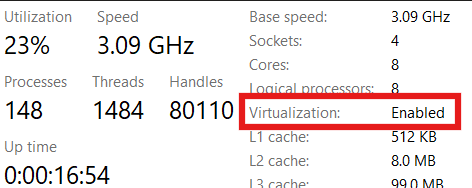
<li class="">I used a Windows Server 2022 VM. As listed in the requirements, nested virtualization must be supported. Confirm this in Task Manager: <img decoding="async" loading="lazy" alt="Screenshot of Task Manager showing nested virtualization" src="https://lostinperspiration.com/assets/images/task-manager-nested-virtualization-c1d2f5552eb0fe30586f017ac35aeef8.png" width="472" height="188" class="img_ev3q"></li>
<li class="">Install WSL with elevated PowerShell:</li>
</ol>
<div class="language-text codeBlockContainer_Ckt0 theme-code-block" style="--prism-color:#393A34;--prism-background-color:#f6f8fa"><div class="codeBlockContent_QJqH"><pre tabindex="0" class="prism-code language-text codeBlock_bY9V thin-scrollbar" style="color:#393A34;background-color:#f6f8fa"><code class="codeBlockLines_e6Vv"><span class="token-line" style="color:#393A34"><span class="token plain">wsl --install --no-distribution</span><br></span><span class="token-line" style="color:#393A34"><span class="token plain">wsl --update</span><br></span></code></pre></div></div>
<ol start="3">
<li class="">Reboot the system to ensure WSL is properly registered.</li>
</ol>
<h3 class="anchor anchorTargetStickyNavbar_Vzrq" id="prepare-azure-resources">Prepare Azure Resources<a href="https://lostinperspiration.com/blog/connected-cache#prepare-azure-resources" class="hash-link" aria-label="Direct link to Prepare Azure Resources" title="Direct link to Prepare Azure Resources" translate="no">​</a></h3>
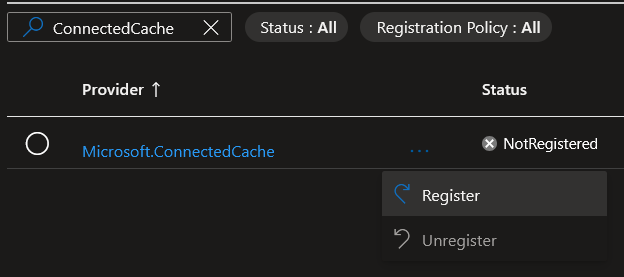
<ol>
<li class="">In the Azure subscription, register the resource provider "Microsoft.ConnectedCache"<!-- -->
<ul>
<li class="">Subscription -&gt; Settings -&gt; Resource Providers <img decoding="async" loading="lazy" alt="Resource provider screen for Azure subscription" src="https://lostinperspiration.com/assets/images/resource-provider-267eee14180ab5f987dcd56b2e8899f3.png" width="624" height="277" class="img_ev3q"></li>
</ul>
</li>
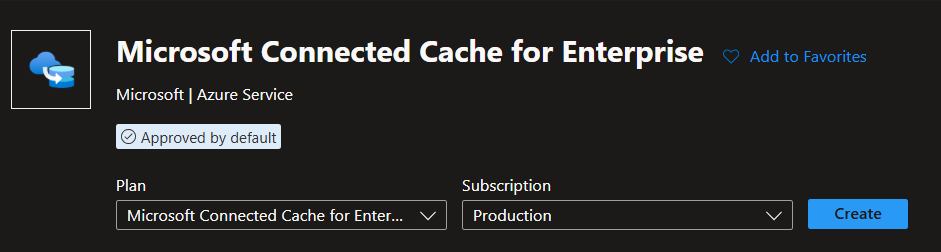
<li class="">From your resource group, create a Microsoft Connected Cache for Enterprise resource <img decoding="async" loading="lazy" alt="Screenshot showing Azure portal option to create MCC resource" src="https://lostinperspiration.com/assets/images/cc-resource-b0a0fb98804e7a0ab2000979867cab0a.png" width="941" height="252" class="img_ev3q"></li>
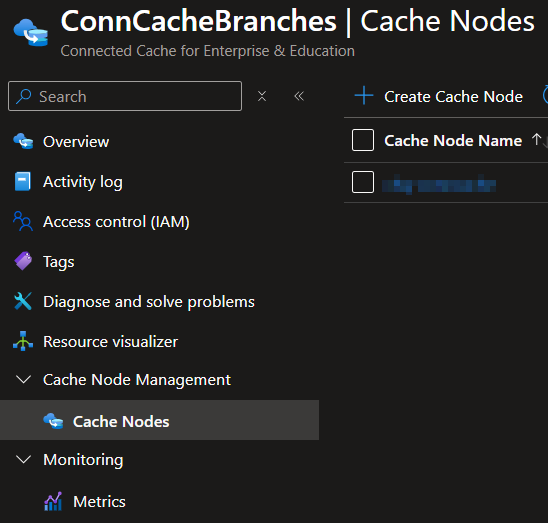
<li class="">Create a cache node. This node represents a single server with unique settings and install scripts. You have the option to choose Windows or Linux <img decoding="async" loading="lazy" alt="Screenshot showing Azure portal option to create MCC node" src="https://lostinperspiration.com/assets/images/cache-node-create-223798dc56c729d8d497aec278115dde.png" width="548" height="523" class="img_ev3q"></li>
<li class="">After creation, open the node to configure the following options:<!-- -->
<ol>
<li class="">Cache size (e.g., 100 GB)</li>
<li class="">Proxy (if required)<!-- -->
<ol>
<li class="">Hostname (FQDN only, e.g., proxy.company.com)</li>
<li class="">Port</li>
</ol>
</li>
</ol>
</li>
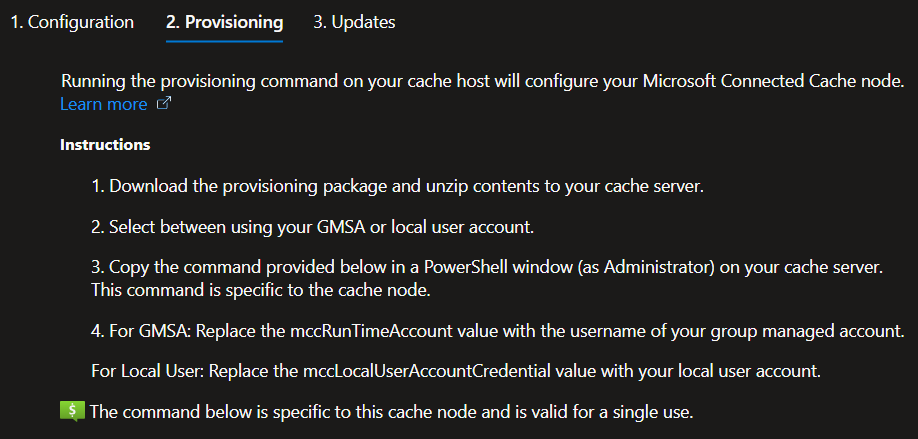
<li class="">Save the configuration. The node will auto-generate the provisioning script. This may take a minute and requires a refresh of the page. Review the following instructions: <img decoding="async" loading="lazy" alt="Screenshot of provisioning script instructions in Azure portal" src="https://lostinperspiration.com/assets/images/provisioning-instructions-b554a67cfe3fef8401b006e119086d88.png" width="918" height="439" class="img_ev3q"></li>
</ol>
<p>You have the option of choosing a GMSA, local or domain account. The account you choose will register tasks in Task Scheduler and run the WSL instance as that user.</p>
<h3 class="anchor anchorTargetStickyNavbar_Vzrq" id="run-provisioning-script">Run Provisioning Script<a href="https://lostinperspiration.com/blog/connected-cache#run-provisioning-script" class="hash-link" aria-label="Direct link to Run Provisioning Script" title="Direct link to Run Provisioning Script" translate="no">​</a></h3>
<ol>
<li class="">Download the provisioning package from the cache node configuration window and extract to a local folder. This package is not unique and can be reused for each cache node.<!-- -->
<ul>
<li class="">Windows: <a href="https://aka.ms/MCC-Ent-InstallScript-WSL" target="_blank" rel="noopener noreferrer" class="">https://aka.ms/MCC-Ent-InstallScript-WSL</a></li>
<li class="">Linux: <a href="https://aka.ms/MCC-Ent-InstallScript-Linux" target="_blank" rel="noopener noreferrer" class="">https://aka.ms/MCC-Ent-InstallScript-Linux</a></li>
</ul>
</li>
<li class="">I used a domain service account. Open an elevated PowerShell window, navigate to the directory where the install scripts were extracted and create the following variables:<!-- -->
<ol>
<li class=""><code>$User = "Domain\User"</code></li>
<li class=""><code>$myLocalAccountCredential = Get-Credential "Domain\User"</code></li>
</ol>
</li>
<li class="">Run the provisioning script from the cache node configuration window. <em>This command is unique to each MCC node and cannot be reused to install another node</em>
<img decoding="async" loading="lazy" alt="Screenshot of Windows terminal running the install command" src="https://lostinperspiration.com/assets/images/install-command-80982f13c72a9e56a73ae0bf3e3c42e3.png" width="1459" height="101" class="img_ev3q"></li>
<li class="">The installer will log to the terminal and the <code>InstallLogs</code> directory under the installation folder specified in the install command. Default is <code>C:\mccwsl01</code></li>
</ol>
<p>This is the point where things went wrong for me. Without a good grasp on what was going on, I spent weeks going down rabbit holes and coming up with the wrong solutions. Troubleshooting article coming soon!</p>
<h2 class="anchor anchorTargetStickyNavbar_Vzrq" id="behind-the-scenes">Behind the Scenes<a href="https://lostinperspiration.com/blog/connected-cache#behind-the-scenes" class="hash-link" aria-label="Direct link to Behind the Scenes" title="Direct link to Behind the Scenes" translate="no">​</a></h2>
<p>The script tries to:</p>
<ol>
<li class="">Configure the host with WSL, firewall rules and port forwarding to redirect port 80 requests from the host to WSL</li>
<li class="">Import an Ubuntu image into WSL</li>
<li class="">Download and execute scripts to configure Azure IoT Edge containers in Ubuntu</li>
<li class="">Download the latest MCC container image from Microsoft's repository and install in Ubuntu</li>
<li class="">Verify the node is downloading, caching and serving content successfully</li>
</ol>
<h2 class="anchor anchorTargetStickyNavbar_Vzrq" id="check-the-status">Check the Status<a href="https://lostinperspiration.com/blog/connected-cache#check-the-status" class="hash-link" aria-label="Direct link to Check the Status" title="Direct link to Check the Status" translate="no">​</a></h2>
<p>If the installation is successful, the <code>C:\mccwsl01\InstallLogs\WSL_Mcc_Install_FromRegisteredTask_Status</code> log will show successful image downloads and HTTP 200 content requests. <img decoding="async" loading="lazy" alt="Log showing success" src="https://lostinperspiration.com/assets/images/registered-task-success-17087572f2baf27c79a2c0ac5e1b450e.png" width="1225" height="231" class="img_ev3q"></p>
<p>Review <a href="https://learn.microsoft.com/en-us/windows/deployment/do/mcc-ent-verify-cache-node" target="_blank" rel="noopener noreferrer" class="">Microsoft's article</a> to verify the cache node is working correctly. Start by running <code>wget</code> from the VM:</p>
<div class="language-cmd codeBlockContainer_Ckt0 theme-code-block" style="--prism-color:#393A34;--prism-background-color:#f6f8fa"><div class="codeBlockContent_QJqH"><pre tabindex="0" class="prism-code language-cmd codeBlock_bY9V thin-scrollbar" style="color:#393A34;background-color:#f6f8fa"><code class="codeBlockLines_e6Vv"><span class="token-line" style="color:#393A34"><span class="token plain">wget http://localhost/filestreamingservice/files/7bc846e0-af9c-49be-a03d-bb04428c9bb5/Microsoft.png?cacheHostOrigin=dl.delivery.mp.microsoft.com</span><br></span></code></pre></div></div>
<p>If successful, you will receive an HTTP 200 response.</p>
<p>Make an HTTP request from any device that the MCC server will serve content to:</p>
<div class="language-http codeBlockContainer_Ckt0 theme-code-block" style="--prism-color:#393A34;--prism-background-color:#f6f8fa"><div class="codeBlockContent_QJqH"><pre tabindex="0" class="prism-code language-http codeBlock_bY9V thin-scrollbar" style="color:#393A34;background-color:#f6f8fa"><code class="codeBlockLines_e6Vv"><span class="token-line" style="color:#393A34"><span class="token plain">http://[MCC-IP-address]/filestreamingservice/files/7bc846e0-af9c-49be-a03d-bb04428c9bb5/Microsoft.png?cacheHostOrigin=dl.delivery.mp.microsoft.com</span><br></span></code></pre></div></div>
<p>If successful, the device will download a PNG from the cache server.</p>
<p>Back in the Azure portal, the cache node will show a status of 'Healthy' and show the currently installed version.
<img decoding="async" loading="lazy" alt="Azure portal view of healthy cache node" src="https://lostinperspiration.com/assets/images/node-status-dfb0e006473b59bd8f7e94babde6d0f0.png" width="985" height="132" class="img_ev3q"></p>
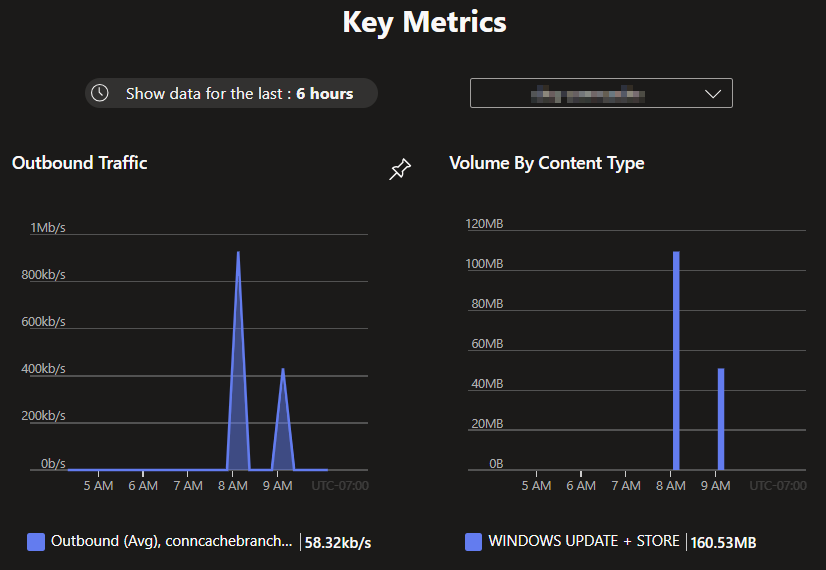
<p>Performance metrics will be visible in the 'Overview' tab. Detailed metrics can be viewed in the 'Metrics' tab. The charts will be blank until devices are configured to use the MCC server and perform download activities.
<img decoding="async" loading="lazy" alt="Azure portal showing node performance metrics" src="https://lostinperspiration.com/assets/images/node-metrics-7e26d7571470a6ae2d14a36d1396787c.png" width="826" height="570" class="img_ev3q"></p>
<h2 class="anchor anchorTargetStickyNavbar_Vzrq" id="next-steps">Next steps<a href="https://lostinperspiration.com/blog/connected-cache#next-steps" class="hash-link" aria-label="Direct link to Next steps" title="Direct link to Next steps" translate="no">​</a></h2>
<p>The MCC server is now ready to servce cached Microsoft update content to any client that asks! Stay tuned for the next post on how to configure devices to use the MCC server effectively.</p>
<h2 class="anchor anchorTargetStickyNavbar_Vzrq" id="resources">Resources<a href="https://lostinperspiration.com/blog/connected-cache#resources" class="hash-link" aria-label="Direct link to Resources" title="Direct link to Resources" translate="no">​</a></h2>
<h3 class="anchor anchorTargetStickyNavbar_Vzrq" id="az-commands">AZ Commands<a href="https://lostinperspiration.com/blog/connected-cache#az-commands" class="hash-link" aria-label="Direct link to AZ Commands" title="Direct link to AZ Commands" translate="no">​</a></h3>
<p>The AZ CLI supports creation of Connected Cache resources and nodes with the following commands. These commands are in preview, so stay up to date with the documentation!</p>
<p>Create Connected Cache Azure resource. <a href="https://learn.microsoft.com/en-us/cli/azure/mcc/ent/resource" target="_blank" rel="noopener noreferrer" class="">https://learn.microsoft.com/en-us/cli/azure/mcc/ent/resource</a></p>
<div class="language-PowerShell language-powershell codeBlockContainer_Ckt0 theme-code-block" style="--prism-color:#393A34;--prism-background-color:#f6f8fa"><div class="codeBlockContent_QJqH"><pre tabindex="0" class="prism-code language-powershell codeBlock_bY9V thin-scrollbar" style="color:#393A34;background-color:#f6f8fa"><code class="codeBlockLines_e6Vv"><span class="token-line" style="color:#393A34"><span class="token plain">$subscription = "Production"</span><br></span><span class="token-line" style="color:#393A34"><span class="token plain">$mccResourceName = "ConnCacheBranches"</span><br></span><span class="token-line" style="color:#393A34"><span class="token plain">$resourceLocation = "westus"</span><br></span><span class="token-line" style="color:#393A34"><span class="token plain">$resourceGroup = "ConnCacheBranches"</span><br></span><span class="token-line" style="color:#393A34"><span class="token plain">az account set --subscription $subscription</span><br></span><span class="token-line" style="color:#393A34"><span class="token plain">az mcc ent resource create --mcc-resource-name $mccResourceName --location $resourceLocation --resource-group $resourceGroup</span><br></span></code></pre></div></div>
<p>Create Connected Cache node. <a href="https://learn.microsoft.com/en-us/cli/azure/mcc/ent/node" target="_blank" rel="noopener noreferrer" class="">https://learn.microsoft.com/en-us/cli/azure/mcc/ent/node</a></p>
<div class="language-PowerShell language-powershell codeBlockContainer_Ckt0 theme-code-block" style="--prism-color:#393A34;--prism-background-color:#f6f8fa"><div class="codeBlockContent_QJqH"><pre tabindex="0" class="prism-code language-powershell codeBlock_bY9V thin-scrollbar" style="color:#393A34;background-color:#f6f8fa"><code class="codeBlockLines_e6Vv"><span class="token-line" style="color:#393A34"><span class="token plain">$subscription = "Production"</span><br></span><span class="token-line" style="color:#393A34"><span class="token plain">$mccResourceName = "ConnCacheBranches"</span><br></span><span class="token-line" style="color:#393A34"><span class="token plain">$resourceLocation = "westus"</span><br></span><span class="token-line" style="color:#393A34"><span class="token plain">$resourceGroup = "ConnCacheBranches"</span><br></span><span class="token-line" style="color:#393A34"><span class="token plain" style="display:inline-block"></span><br></span><span class="token-line" style="color:#393A34"><span class="token plain">$cacheNodeName = "Office1"</span><br></span><span class="token-line" style="color:#393A34"><span class="token plain">$cacheNodeOperatingSystem = "Windows"</span><br></span><span class="token-line" style="color:#393A34"><span class="token plain">$driveSizeGB = "100"</span><br></span><span class="token-line" style="color:#393A34"><span class="token plain" style="display:inline-block"></span><br></span><span class="token-line" style="color:#393A34"><span class="token plain">$proxy = "enabled"</span><br></span><span class="token-line" style="color:#393A34"><span class="token plain">$proxyHost = "proxy.company.com"</span><br></span><span class="token-line" style="color:#393A34"><span class="token plain">$proxyPort = "80"</span><br></span><span class="token-line" style="color:#393A34"><span class="token plain" style="display:inline-block"></span><br></span><span class="token-line" style="color:#393A34"><span class="token plain">$autoUpdateRing = "slow"</span><br></span><span class="token-line" style="color:#393A34"><span class="token plain">$autoUpdateDay = "6" #Saturday</span><br></span><span class="token-line" style="color:#393A34"><span class="token plain">$autoUpdateTime = "00:00" #midnight UTC.</span><br></span><span class="token-line" style="color:#393A34"><span class="token plain">$autoUpdateWeek = "4"</span><br></span><span class="token-line" style="color:#393A34"><span class="token plain" style="display:inline-block"></span><br></span><span class="token-line" style="color:#393A34"><span class="token plain">az account set --subscription $subscription</span><br></span><span class="token-line" style="color:#393A34"><span class="token plain">az mcc ent node create --cache-node-name $name --mcc-resource-name $mccResourceName --host-os $cacheNodeOperatingSystem --resource-group $resourceGroup</span><br></span><span class="token-line" style="color:#393A34"><span class="token plain">az mcc ent node wait --created --cache-node-name $name --mcc-resource-name $mccResourceName --resource-group $resourceGroup</span><br></span><span class="token-line" style="color:#393A34"><span class="token plain">#Configure cache node</span><br></span><span class="token-line" style="color:#393A34"><span class="token plain">az mcc ent node update --cache-node-name $name --mcc-resource-name $mccResourceName --resource-group $resourceGroup --cache-drive "[{physical-path:/var/mcc,size-in-gb:$driveSizeGB}]" --proxy $proxy --proxy-host $proxyHost --proxy-port $proxyPort --auto-update-ring $autoUpdateRing --auto-update-day $autoUpdateDay --auto-update-time $autoUpdateTime --auto-update-week $autoUpdateWeek</span><br></span></code></pre></div></div>]]></content>
    </entry>
</feed>